Change activity without leaving the screen
In full screen, the “Another activity” button lists every activity possible with the words of the resource. You go from bingo to memory without going back.
In full screen, the “Another activity” button now lists every activity that plays with the words of the resource. They are sorted by family, as in “Create a resource”. You can start with “Hidden picture”, go on with “What's missing?” and finish with a memory game, without going back or preparing anything.
One screen per resource
This change follows a rule I set myself for everything on screen: each resource has its own screen, and that screen follows the way the resource is used in class. Cards become a pack you turn over and sort onto “Found” or “To review”. Nomenclature cards are laid under their picture, then checked with the control cards. Happy Families is played by putting each card in its family. No two resources share the same screen any more.
The buttons of the bar
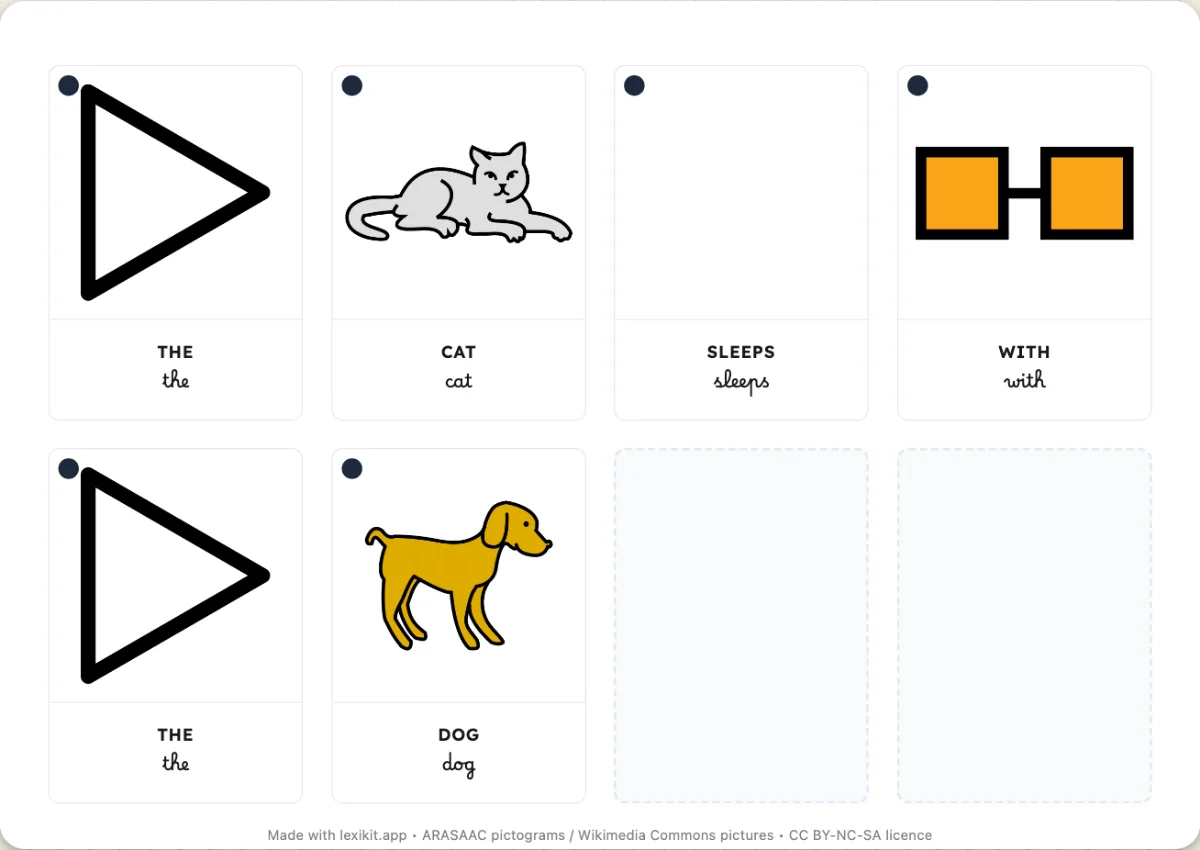
The “Settings” button opens the settings of the current activity without leaving it. “Start again” restarts the game with the same words. At the top, a row of dots shows the progress.
Each button of the bar shows its name next to its icon: Voice, Full screen, Start again, Close. In front of a class, an icon alone can be confusing.